
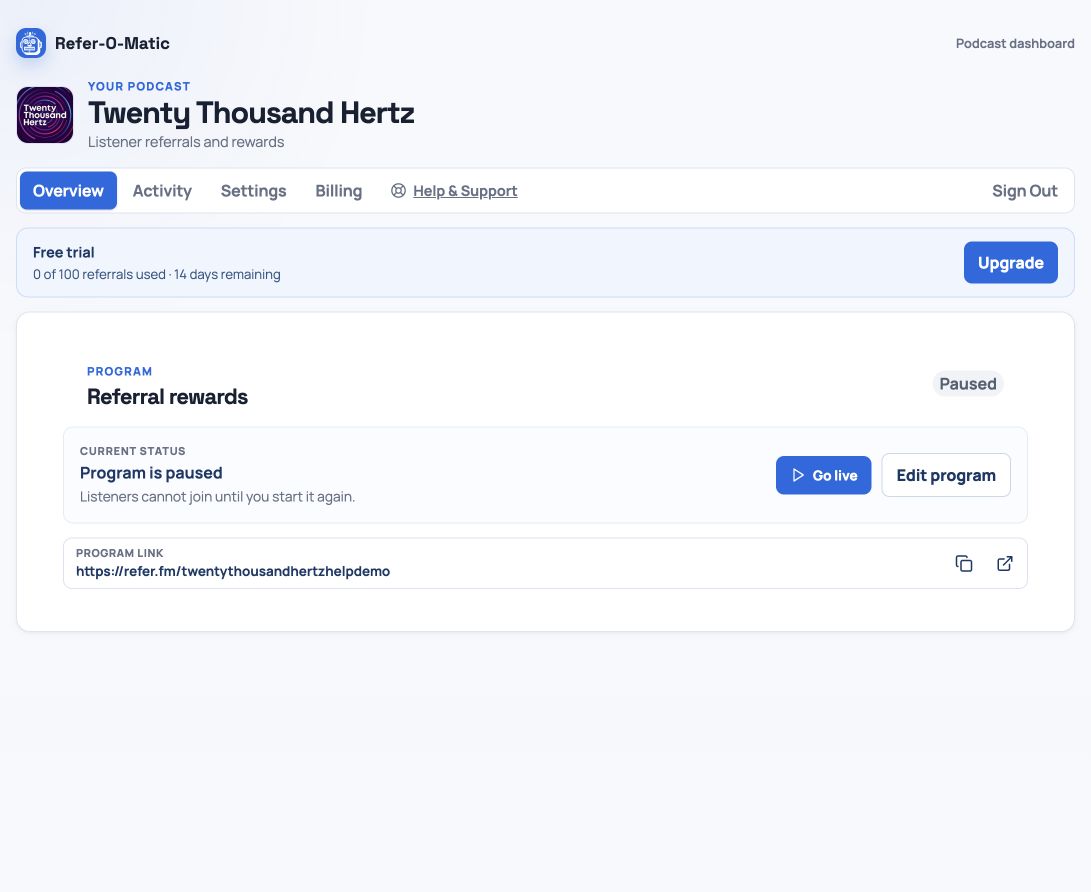
1. Open Referral rewards
In your podcast dashboard, open Referral rewards. If you are starting a new program, the editor opens automatically. For an existing paused program, select Edit program.
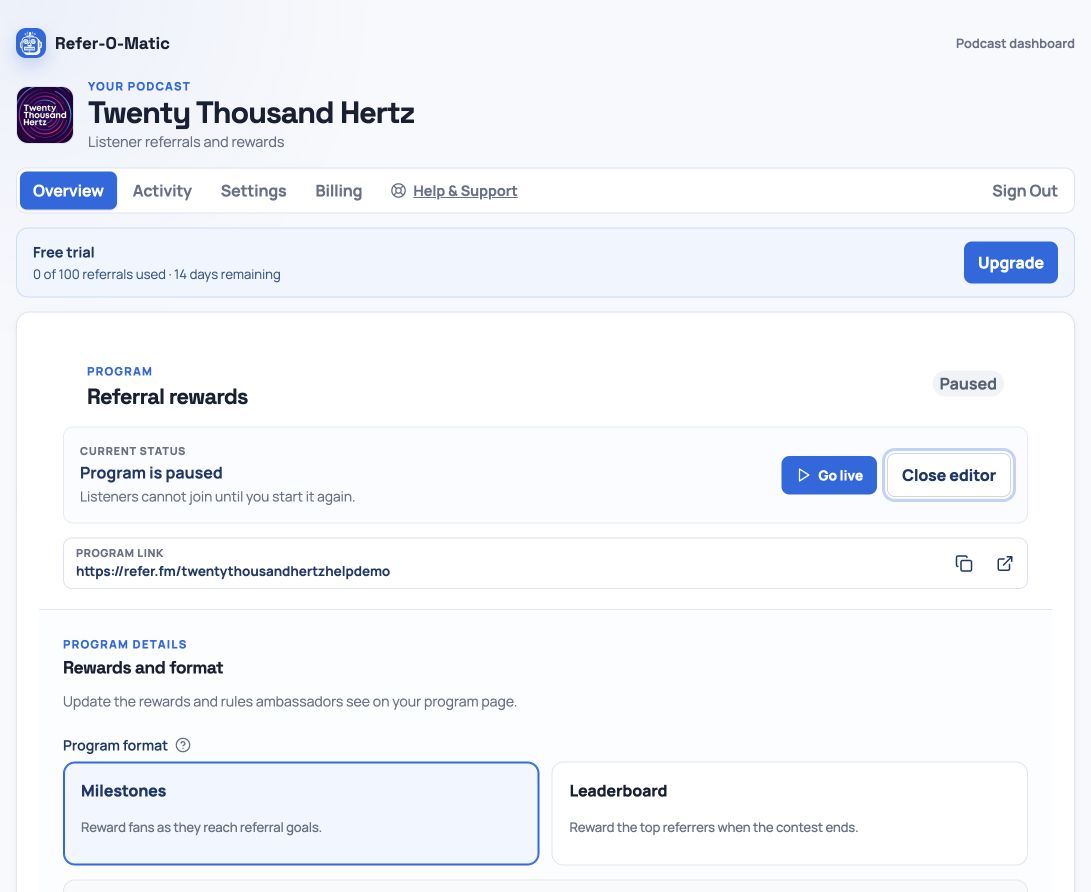
2. Select Milestones
Choose Milestones as the program format. Milestones are an ongoing format, so you do not need an end date. Each tier should state the number of referrals required and the exact reward an ambassador receives.
3. Add your first milestone
Select Add milestone, then enter a referral count and reward. Start with an achievable first reward that gives new ambassadors a clear early win.
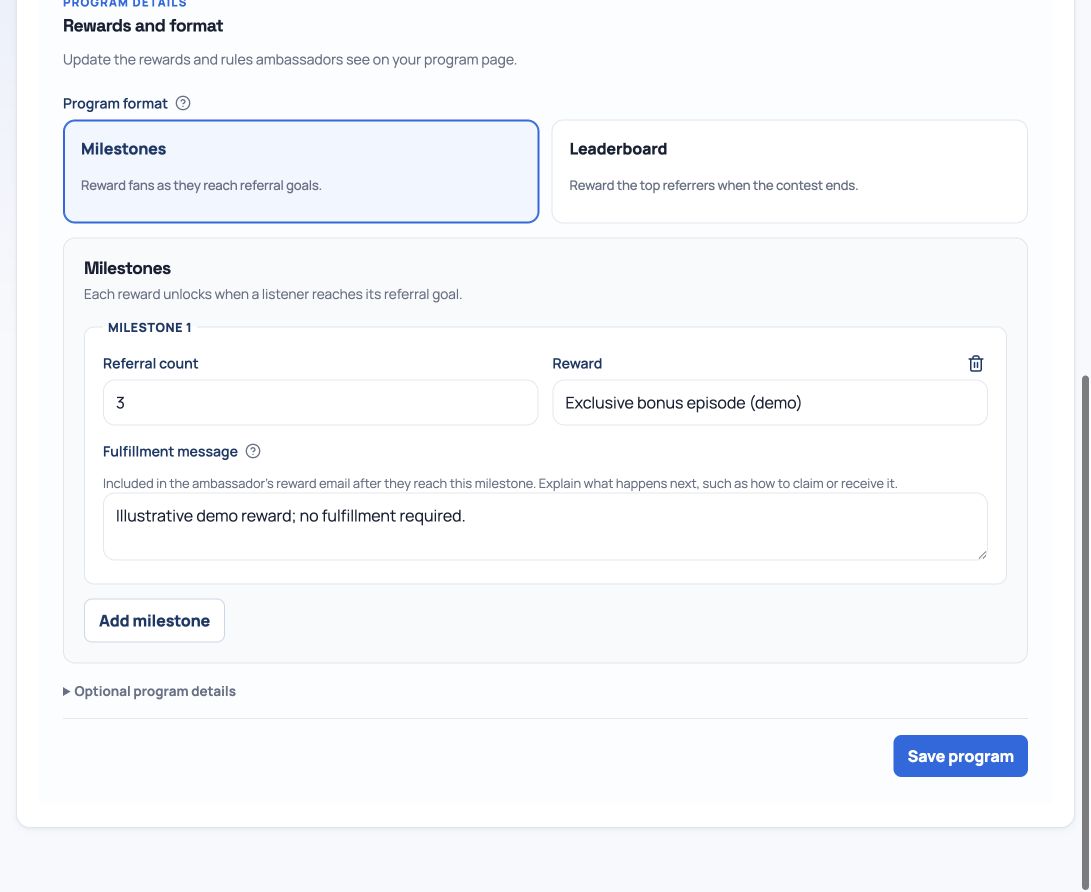
3 referrals — Exclusive bonus episode
4. Add higher-value tiers
Add more milestones for advocates who keep sharing. Rewards should become more valuable as the referral count rises, and every reward description should be clear enough to understand without contacting you.
- 10 referrals — Signed show poster
- 25 referrals — Private virtual Q&A with the host
5. Save, then go live when ready
Select Save program after you have added at least one valid milestone. The dashboard confirms that the details are saved and that you can press Go live. Review the tiers once more, then choose Go live only when you want ambassadors to join and start sharing.
Keep track of earned rewards
When an ambassador reaches a milestone, Refer-O-Matic records a reward claim. Both Starter and Pro let you mark a claim Fulfilled or Rejected and add a note. For example, after sending a T-shirt, mark the claim Fulfilled and record when you sent it.
You are responsible for delivering rewards and arranging any prize drawings. A fulfillment status is your record of that work; changing it does not ship a prize, send a download or select a winner.